
How to add sequential numbers and Excel data
User guide contents ↓Variable data (VDP) means each printed label gets unique content: sequential numbers like 0001, 0002…, customer names, product codes, or QR codes pointing to unique URLs. Trimto generates an entire batch of labels from a single design combined with sequential numbering or an Excel spreadsheet.
Use cases and examples (tickets, vouchers, serial labels): variable data printing and sequential numbering.
Sequential numbering
Open your label design file (see Open a design file).
Click Numbering on the toolbar. Trimto automatically:
- enables variable data,
- inserts a text box containing
{{stt}}in the center of the page ({{stt}}is Trimto's built-in placeholder for the running number; it is replaced by 0001, 0002… on each label), - opens the Numbering / VDP tab in the right panel.

Click "Numbering" on the toolbar Drag the number text box to the right spot on the label; change font, font size, and color in the Properties tab.
In the Numbering / VDP tab, under Sequential numbering {{stt}}, set:
Field Description Example Start from Number for the first label 1 Step How much each label increments 1 Digits Pad with leading zeros to reach target digits 4 → 0001 Label quantity Total number of labels (when not using an Excel table) 500 Prefix / Suffix Text before / after the number INV-…/2026→ INV-0001/2026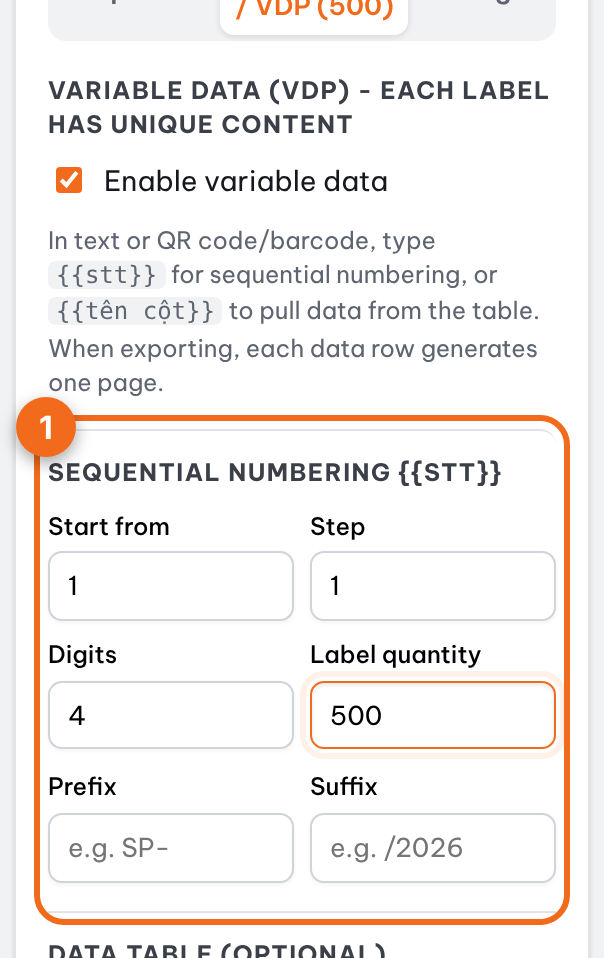
Tab "Numbering / VDP": start from, step, digits, quantity, prefix, suffix Under Preview each label, click ◀ ▶ to check each label before printing.
Several label designs: each page has its own numbering. The Numbering / VDP tab edits the page you have open; other pages keep their own numbers.
Data from Excel, CSV
Use this when each label has a different name, code, address, etc.
- Prepare your spreadsheet: the first row is the column header, and each row below is one label. For example, columns
Name,Code. - In the Numbering / VDP tab, under Data table (optional): click Choose Excel / CSV file (.xlsx, .csv, .tsv), or select a range in Excel including the header row → Ctrl + C → paste into the box below → Use pasted table.
- Select a text box (or QR code, barcode) on the page, then click a column header, such as
{{Name}}, to insert it. You can also manually type{{column name}}into the text content. - You get one label per data row.
{{stt}}still works alongside the columns, for example to print a running number next to each name. If your table has its own column namedSTT, Trimto ignores it and{{stt}}follows the numbering settings above.
Tip: column names inside
{{…}}must match the first row of your table exactly. If mistyped, Preview each label will show "Data table does not have column…".
QR codes and barcodes that change per label
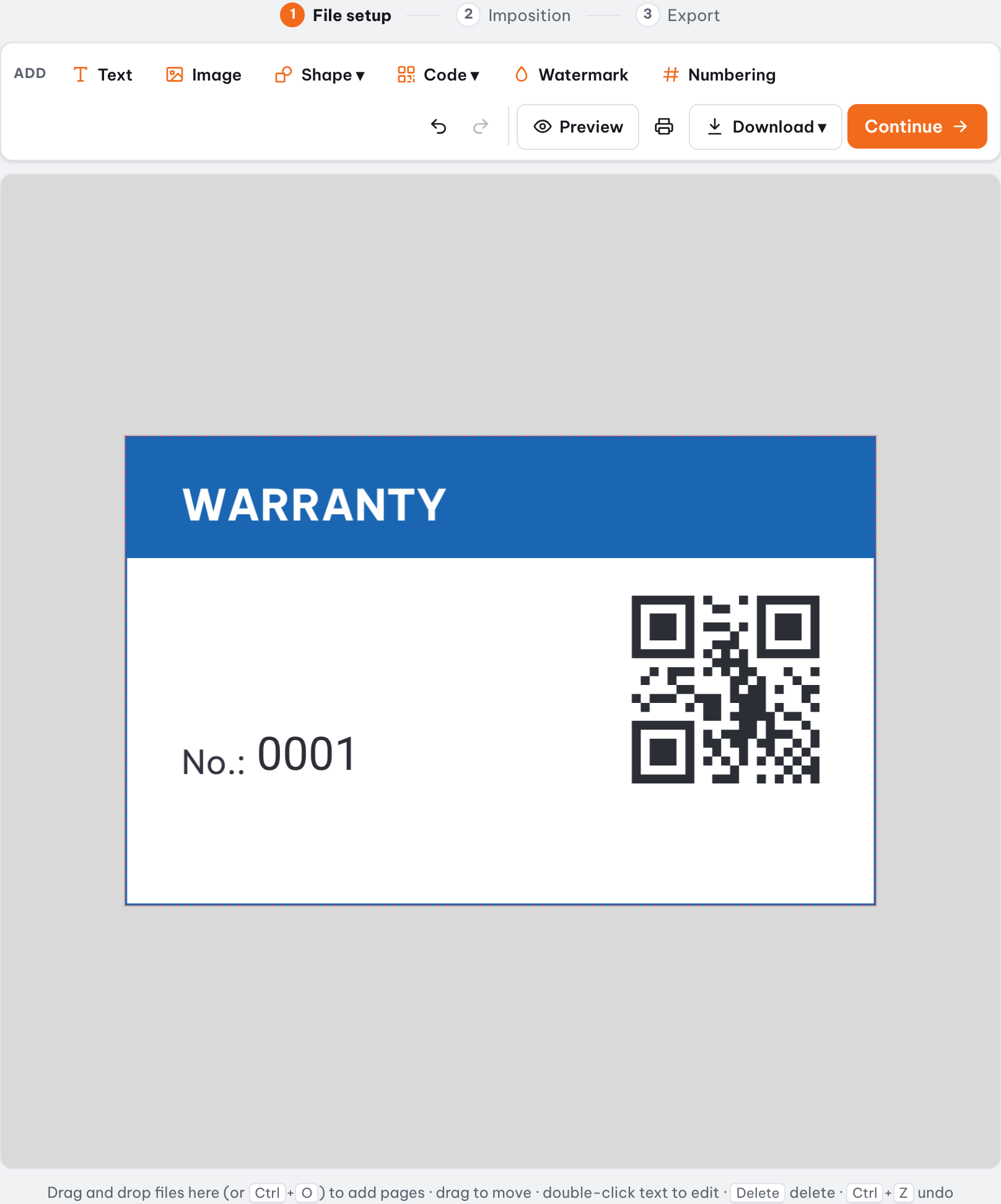
Click Code ▾ → QR code (or Barcode) on the toolbar. When numbering is on, a new QR code starts with the content SP-{{stt}} and a new barcode with {{stt}}; change the content in the Properties tab, for example to https://example.com/p/{{Code}} so each QR code opens its own product page. You can switch the code type to UPC-A, EAN-13, ITF-14, GS1-128, PDF417, Data Matrix… in the same place.
Impose the batch on sheets
Click Continue: the whole batch goes to the imposition step as one numbered series, and Trimto switches to Print by quantity so every label is printed exactly once on the fewest sheets. Choose sheet size, step & repeat or die-cut, then export the print PDF just like standard labels.
Further reading
- Wikipedia, Variable data printing and Mail merge: the idea behind one design plus a data table.
- Adobe InDesign Help, Data merge: how the same job is done in InDesign, for comparison.
- Trimto Learn: Cut-and-stack numbering explained.