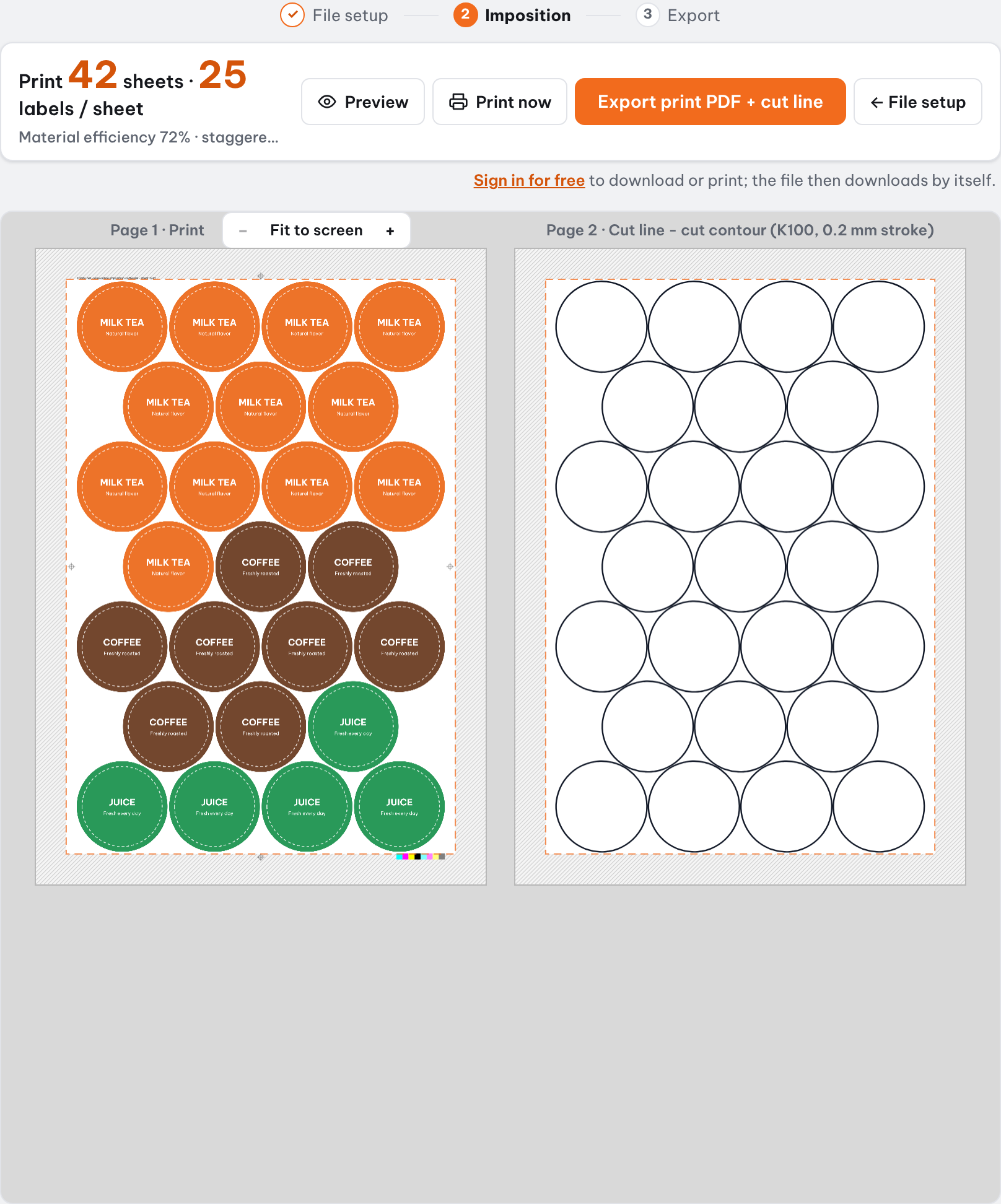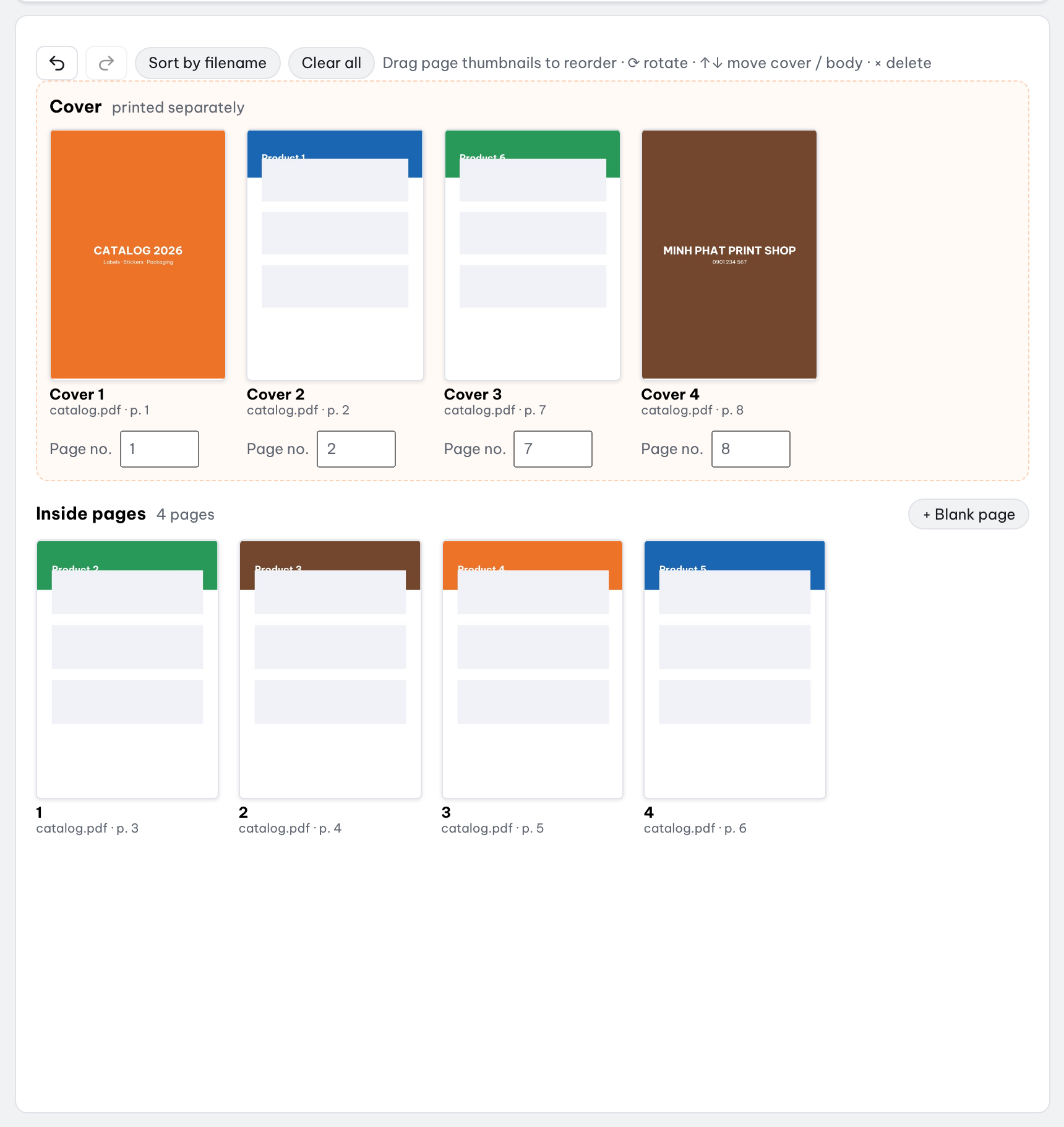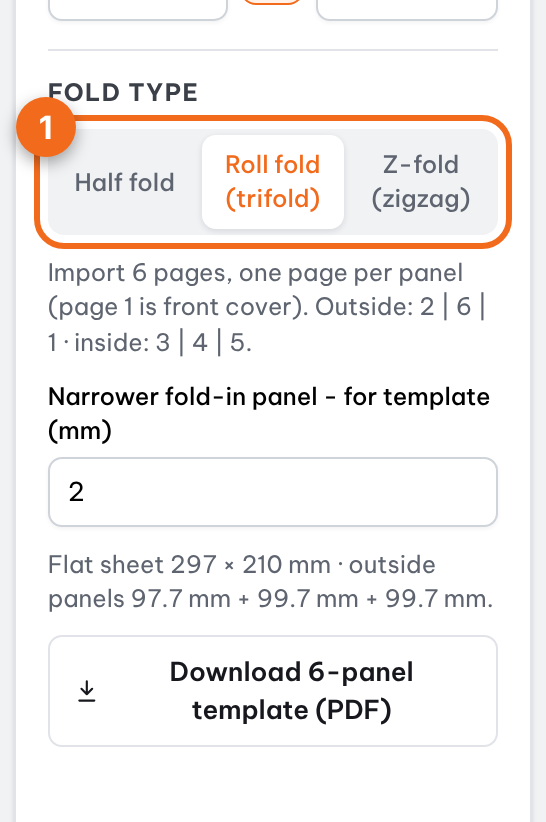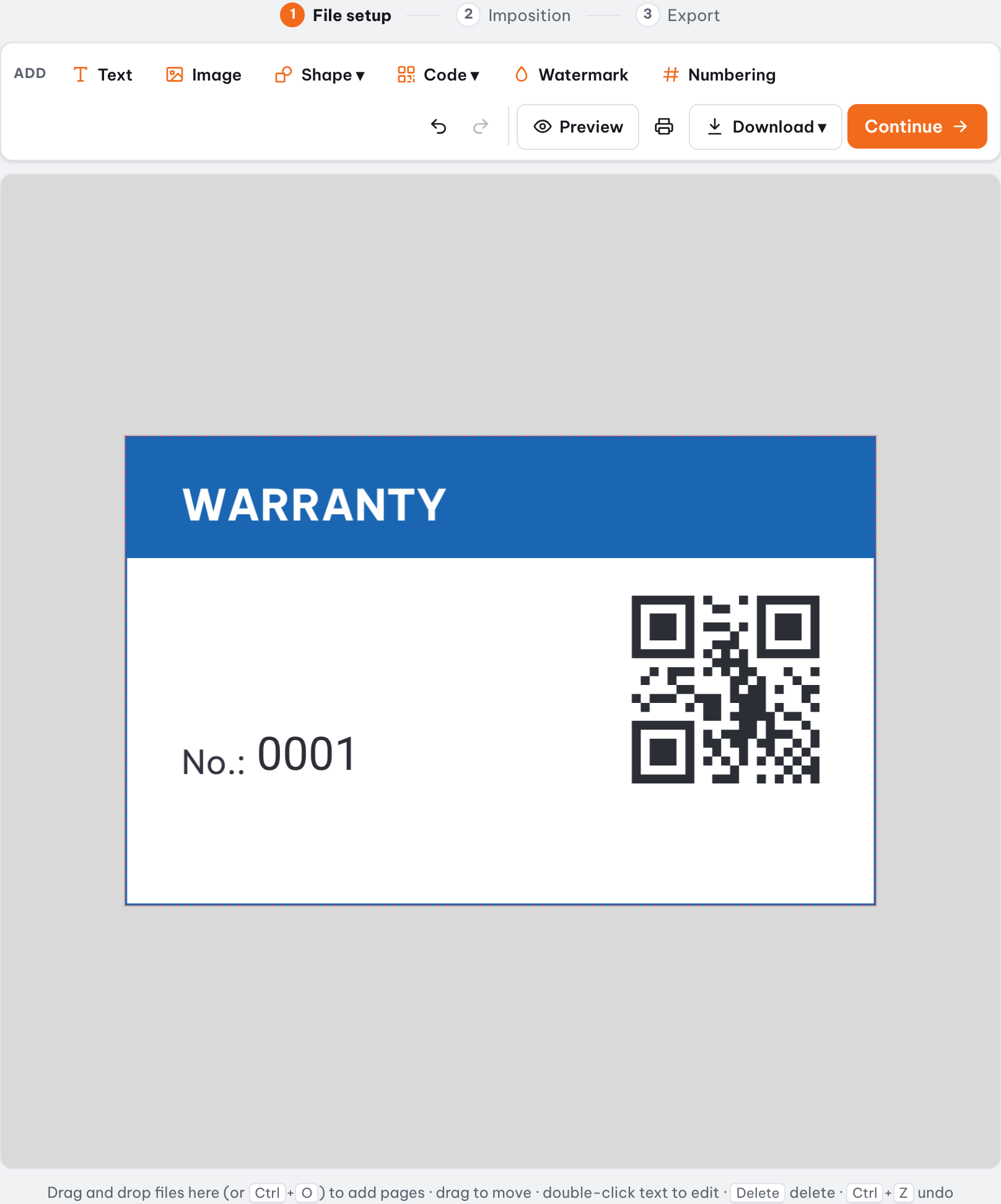
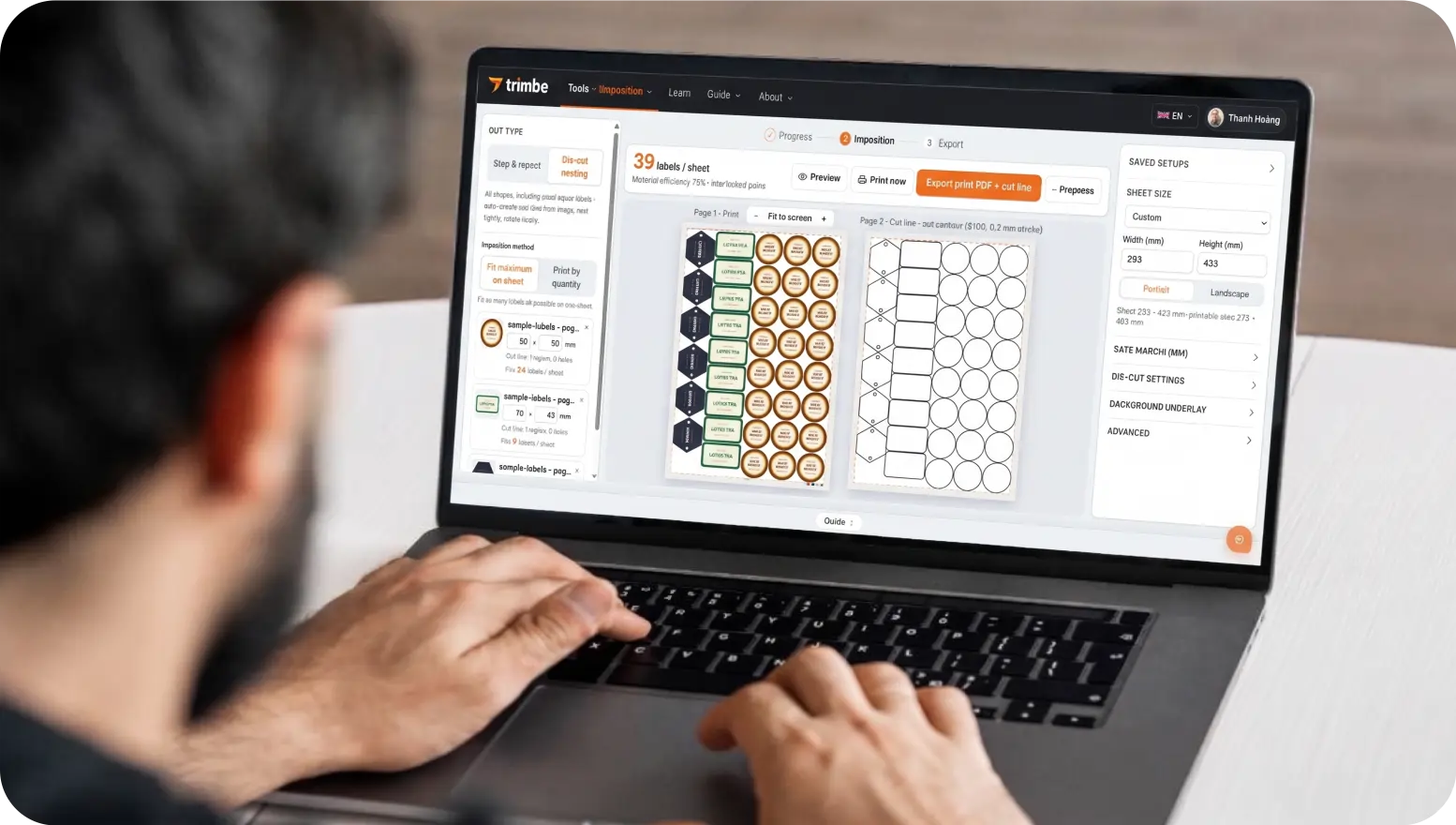
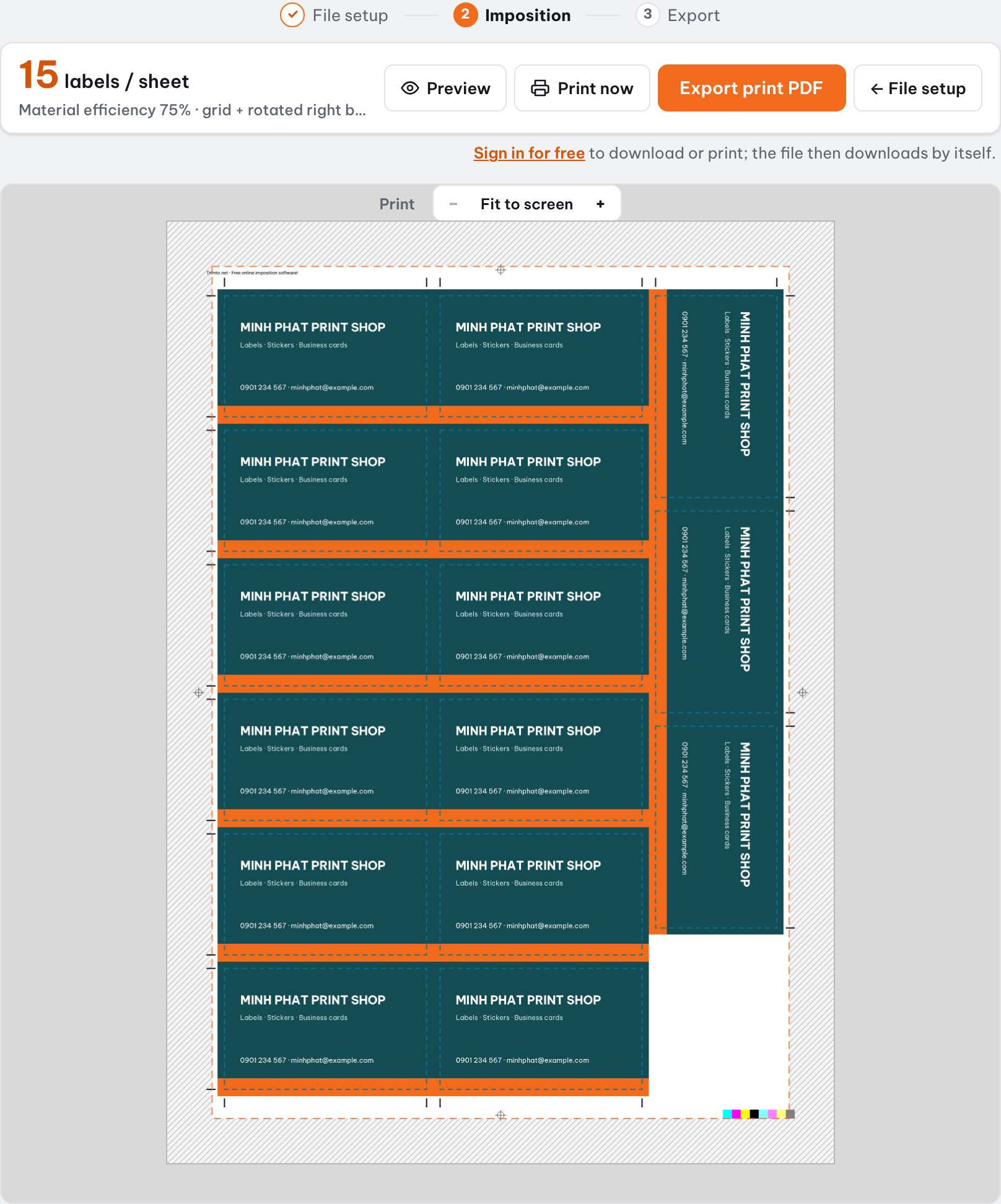
Step and repeat imposition on Trimto: drop in your labels, business cards or flyers and they are laid out in a grid on A4, A3, SRA3, Letter, Legal, Tabloid or a custom sheet for single or double cut, with bleed and crop marks. The sheet count is worked out from your print quantity, and the PDF keeps your vectors, free and right in your browser.
Features
- Single cut: designs touch edge-to-edge with a shared cut line to save paper
- Double cut: individual bleed and crop marks for every design to prevent white borders
- Missing bleed: fill it with a color or mirror the label edge
- A4, SRA4, A3, SRA3, Letter, Legal, Tabloid, 12×18 in, 13×19 in or custom sheet sizes; 3 mm default safe margins; save your setup in the browser to reuse it
- Print by quantity: optimize gang runs to minimize total sheets printed
- Export a print-ready PDF that keeps your vectors and original colors
How it works
- Open your design file; select "Step & repeat" in the left sidebar.
- Verify dimensions, then click Continue.
- Choose sheet size, single cut or double cut, bleed per side, and target print quantity.
- Preview the sheet layout, then export print PDF or send directly to print.
What is step and repeat imposition?
Step and repeat (also called n-up) repeats a design in rows and columns on one sheet, so you print once and cut with a guillotine. It is the fastest, cheapest way to produce square or rectangular labels, business cards, tickets, vouchers and flyers.
Round, rounded-corner or custom-shaped labels cannot be guillotine cut: use die cut nesting to create a cut line. Very small rectangles are also better die cut.
Which products to guillotine cut, which to die cut?
The wrong cutting method wastes paper or leaves bad edges. Rule of thumb: rectangles big enough for a blade are guillotine cut with step and repeat; round, rounded, shaped, holed or very small items are die cut.
| Product | Cutting | Why |
|---|---|---|
| Square-corner business cards | Step and repeat | Rectangular, large runs, a guillotine cuts the whole pile fast and cheap |
| Flyers, coupons, vouchers, tickets | Step and repeat | Rectangular; numbered tickets can use cut and stack order |
| Medium and large square or rectangular labels | Step and repeat | Big enough for a blade, straight edges |
| Square-corner cards, bookmarks, tags without holes | Step and repeat | Rectangular, no cutouts |
| Round, oval, rounded-corner labels | Die cut | A guillotine only cuts straight lines |
| Stickers and decals shaped like a logo or character | Die cut | The cut line follows the artwork edge |
| Very small square or rectangular labels | Die cut | Too small for a blade, easy to misalign |
| Hang tags and labels with holes | Die cut | Holes are cut together with the outline |
| Rounded-corner or custom-shaped business cards | Die cut | Curves and rounded corners need a cut line |
Single cut vs double cut
White business cards are best single cut to fit more per sheet. If the file already includes bleed, Trimto switches to double cut with that bleed width.
| Cut type | Layout | Use when |
|---|---|---|
| Single cut | Items touch, two items share one cut line | White or non-bleed backgrounds; saves the most paper |
| Double cut | Each item has its own bleed, the gap between items is 2 × bleed | Full-bleed color or photo backgrounds |
Positive, zero or negative bleed
"Bleed per side" accepts positive, zero or negative values for both cut types, usually 2-3 mm (about 1/8 inch):
| Bleed | Single cut | Double cut |
|---|---|---|
| Positive | Items sit 2 × bleed apart and share one cut in the middle; each piece keeps its bleed, so it comes out slightly larger than the design | Each item keeps its own bleed; the 2 × bleed gap between items is cut away, so pieces are exactly the design size |
| Zero | Items touch and share one cut on the trim edge | Same as single cut |
| Negative | The shared cut runs inside each item, trimming its edge (useful when the page already includes bleed) | Items touch; each item gets its own cuts inside its edge |
Missing bleed: color fill or mirror
When a design lacks bleed, the Step & repeat panel flags it and the missing area stays white, unless you turn on "Background underlay" and choose:
- Color: fills one color under the block of items, good for flat-color designs.
- Mirror: reflects a strip of the label edge into the bleed area, good for photos, patterns and gradients. Your artwork stays vector; the mirrored edge is a 300 dpi image placed underneath.
Label layout: common sizes for step and repeat
After you pick a sheet size, the preview shows how many items fit per sheet and how many sheets you need. Common finished sizes:
| Product | Finished size |
|---|---|
| US business card | 3.5 × 2 in (89 × 51 mm) |
| EU business card | 85 × 55 mm |
| A6 flyer | 105 × 148 mm |
| A5 flyer | 148 × 210 mm |
| DL voucher, rack card | 99 × 210 mm |
Gang runs by quantity, 90° rotation to save paper
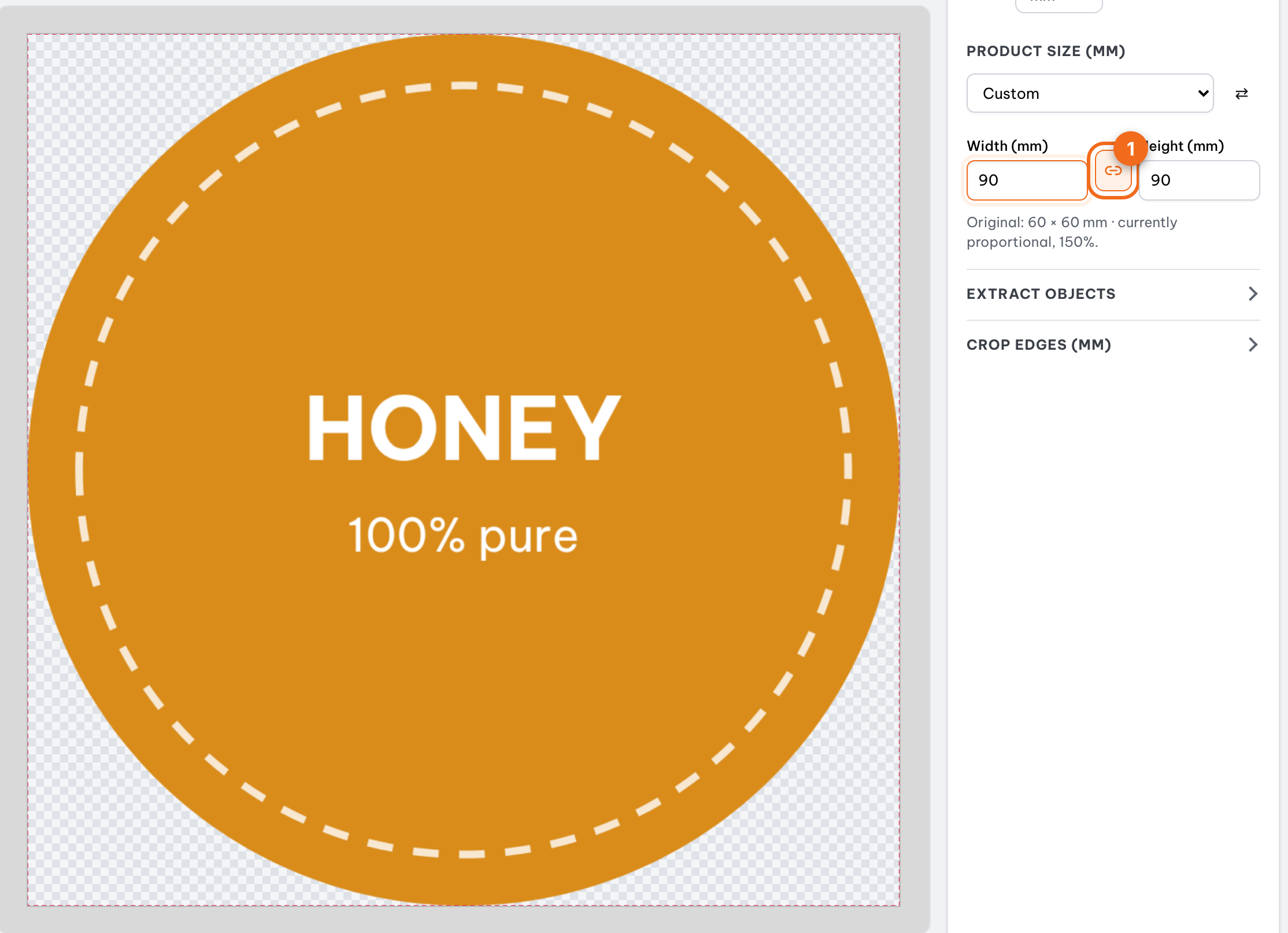
For one design, choose "Fit maximum on 1 sheet". For several designs with different quantities, choose "Print by quantity": Trimto gangs designs on shared sheets and finds the fewest sheets, never printing fewer than you asked for.
Turn on "Rotate 90° to optimize material" to fill gaps with rotated items. Sheet size, margins and layout can be saved as a template for each press.
Cut and stack numbering and printer marks
Numbered tickets and coupons can be numbered per sheet or per stack: with cut and stack order, each stack runs in sequence after the pile is cut, with no hand sorting. In the sheet margin you can add:
- Crop marks outside the block to guide the blade.
- Registration marks and color bars to check ink.
- An info line (Roboto font) with file name, date and sheet number, or your own text.
Step-by-step guides
Further reading
FAQ
- What is the difference between single cut and double cut?
- Single cut places items edge-to-edge so one blade stroke separates adjacent cards, saving paper but risking color bleed on full-bleed artwork. Double cut adds bleed between items and cuts twice, ensuring flawless edges.
- How much bleed do I need?
- Typically 2–3 mm (1/8") on each side. Enter it in "Bleed per side" at the imposition step; if the file already has bleed, Trimto uses that width.
- What if a client file has no bleed?
- At the imposition step, open "Background underlay" and pick Color (one solid color) or Mirror (reflect the label edge into the missing bleed).
- Is step and repeat imposition on Trimto free?
- Yes. Imposition, sheet counts and PDF export are free with no watermark. Files are processed in your browser and never uploaded to a server.
- Can I save sheet settings for each printer?
- Yes. Save sheet size, margins, cut type, bleed and printer marks as a named template (for example "Konica A3 vinyl") and reuse it; templates can be exported and imported as .json.
- What is cut and stack numbering?
- A numbering order for printing and then cutting the whole pile: numbers are assigned by position on the sheet, so after cutting, each stack runs in sequence from top to bottom without hand sorting.
- Can I print business cards, tickets or tags double-sided?
- Yes, with single cut and double cut. Turn on "Print double-sided" at the imposition step, pair a back with each design (for example "Pair odd, even"), and choose a left-right or top-bottom flip. The back is placed so the finished-size frames line up with the front after you flip the sheet; the PDF has two pages per sheet (front, back) and a back offset field to correct printer misregistration.