
Split a sticker sheet into separate designs
Customer files often arrive as one page with many stickers or labels already laid out. To change the quantity, the sheet size or the cut, you need each sticker on its own. Trimto detects the objects on the page, you click the ones you want, and each becomes a separate design; tilted stickers are straightened and vector lines stay vector. Free, and your files never leave your computer.
Open the sticker split tool →Free · runs in browser · files never leave your device
Features
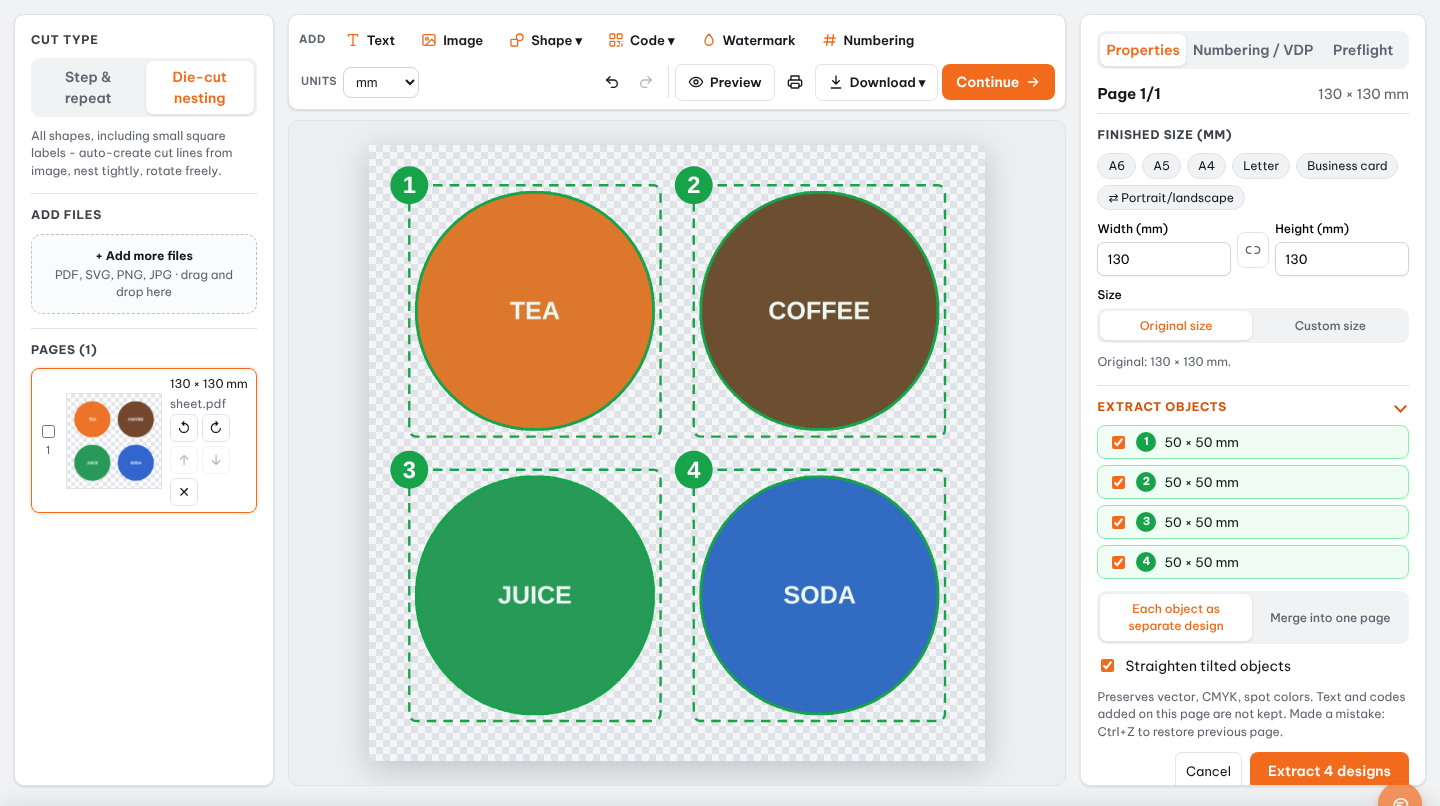
- Detects each sticker on the pre-arranged page right in the workspace
- Click to select the stickers you want; selected ones turn blue
- Split each sticker into its own design with its own quantity
- Tilted stickers are straightened and keep their vector lines
- Objects 0.5 mm or more apart are separated; fragments under 0.5 mm are ignored
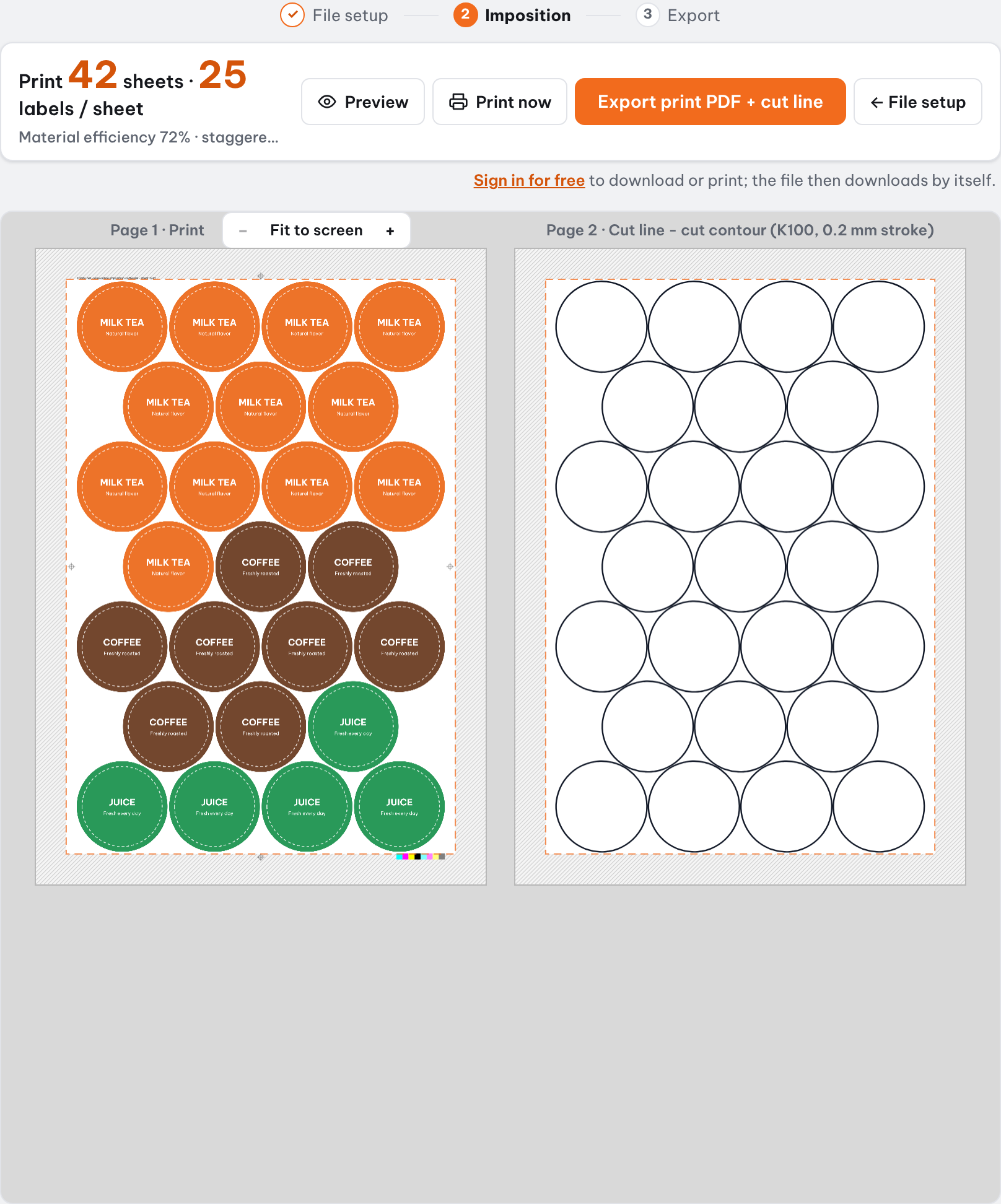
- Re-nest on a new sheet and die cut or straight cut right away
How it works
- Open a PDF or image that has many stickers on one page.
- Open "Extract objects" in the Properties panel; detected objects appear on the page.
- Click the stickers you want and split each into its own design.
- Set a quantity for each design, choose die cutting or straight cutting, and export the PDF.
When do you need to split a sticker sheet?
Splitting helps when the source is already arranged: a sticker catalogue sheet, a designer proof, or the file from a previous run. Instead of reopening design software to cut out each sticker, you split them in Trimto and re-nest to the new quantities.
How Trimto detects and splits stickers
Trimto scans the page and groups connected parts into objects. Two objects 0.5 mm or more apart count as two stickers; fragments under 0.5 mm, such as specks and stray lines, are ignored. Stickers closer than that are treated as one.
Selected stickers turn blue so you can check them before splitting. Collapse the "Extract objects" section and the page returns to how it was.
Tilted stickers, vector and quality
Stickers placed at an angle on the source page are straightened. With vector PDF, lines stay vector instead of being turned into an image, so print stays sharp. With PNG or JPG the resolution stays that of the original file.
What the detector does with each case
| On the source page | What Trimto does |
|---|---|
| Stickers 0.5 mm or more apart | Each becomes its own object, numbered on the page |
| Stickers touching or closer than 0.5 mm | Treated as one object; separate them in the design file first, or keep them as a pair |
| Specks and stray lines under 0.5 mm | Ignored |
| A sticker placed at an angle | Straightened when split |
| Vector PDF artwork | Stays vector after splitting |
| PNG or JPG artwork | Keeps the resolution of the original image |
Example: reprint four stickers at new quantities
A customer sends last year's PDF: one A4 page with four 60 mm round stickers, one of each design. This time they want 200 of the logo sticker, 100 each of two seasonal designs and 50 of a discount sticker. Open the PDF, open "Extract objects", check that all four are numbered, and split them into four designs.
Set the four quantities, click Continue and choose die cutting so each round sticker gets its own cut line. With "Print by quantity" Trimto works out the sheets so every design reaches its quantity or a little over, never short. Export the print PDF with the cut line on the same page or on a separate page, whichever your cutter expects.
After splitting: re-nest and cut
Each sticker is its own design, so you can set a separate quantity for each and choose "Print by quantity" for the fewest sheets, always enough or more, never short. Round or custom-shaped stickers go to die cutting for a cut line; rectangular ones can use straight cutting.
Step-by-step guides
Further reading
FAQ
- Is splitting a sticker sheet on Trimto free?
- Yes. Detecting, selecting, splitting and PDF export are free with no watermark. Files are processed in your browser and never uploaded to a server.
- Can it separate stickers that are very close together?
- Objects 0.5 mm or more apart are separated. If they are closer than that, they are treated as one object.
- Do the split stickers stay vector?
- Yes, for vector PDF the lines stay vector. For PNG or JPG the resolution of the original file is kept.
- Does it handle tilted stickers?
- Yes. Tilted stickers are straightened when split, so the new layout is tighter.
- Can I set a different quantity for each sticker?
- Yes. Each sticker is its own design; set its quantity and choose "Print by quantity" and Trimto works out the fewest sheets.
- Which files can I split?
- PDF, SVG, PNG and JPG. Vector PDF and SVG keep their vector lines; PNG and JPG keep the resolution of the original image.