
Make barcode labels from Excel
Got an Excel or CSV sheet of product codes, serial numbers or links? Trimto turns each row into a label with its own barcode (UPC-A, EAN-13, EAN-8, Code 128, Code 39, ITF-14, GS1-128), QR, Data Matrix or PDF417 code, then nests the whole run on a print sheet ready for straight cutting or die cutting. Codes are drawn as vector so print is sharp and scanners read it well. Free, and your spreadsheet never leaves your computer.
Open the barcode label tool →Free · runs in browser · files never leave your device
Features
- Each Excel or CSV row becomes one label; label count equals the number of data rows
- UPC-A, UPC-E, EAN-13, EAN-8, Code 128, Code 39, ITF-14, GS1-128, PDF417, QR and Data Matrix codes that change per row
- Insert {{column name}} into text and codes; combine columns in one code, such as https://example.com/p/{{Code}}
- Vector codes stay sharp at any size; invalid codes are flagged before printing
- Nest the run on a print sheet, straight cut or die cut, export PDF
- Paste straight from Excel with Ctrl + C, no need to save a file
How it works
- Open your label design and add a barcode or QR code to the template.
- Upload an .xlsx, .csv or .tsv file, or paste the selected range from Excel; the first row holds the column names.
- Click the code frame, then click a column name to insert {{column name}} into the code content; add it to text too if needed.
- Preview each label, click Continue to nest on a print sheet and export the PDF.
From an Excel sheet to a run of labels with their own codes
Product labels, warehouse tags, serial stickers and shipping labels often need hundreds of different codes. Typing each one into design software is slow and error-prone. With Trimto you build one template, leave a spot for the code, and let your spreadsheet fill in each label.
The first row of the sheet holds the column names (for example Code, Name, Price) and each following row is one label. If a column name is mistyped, the preview tells you right away, before you export.
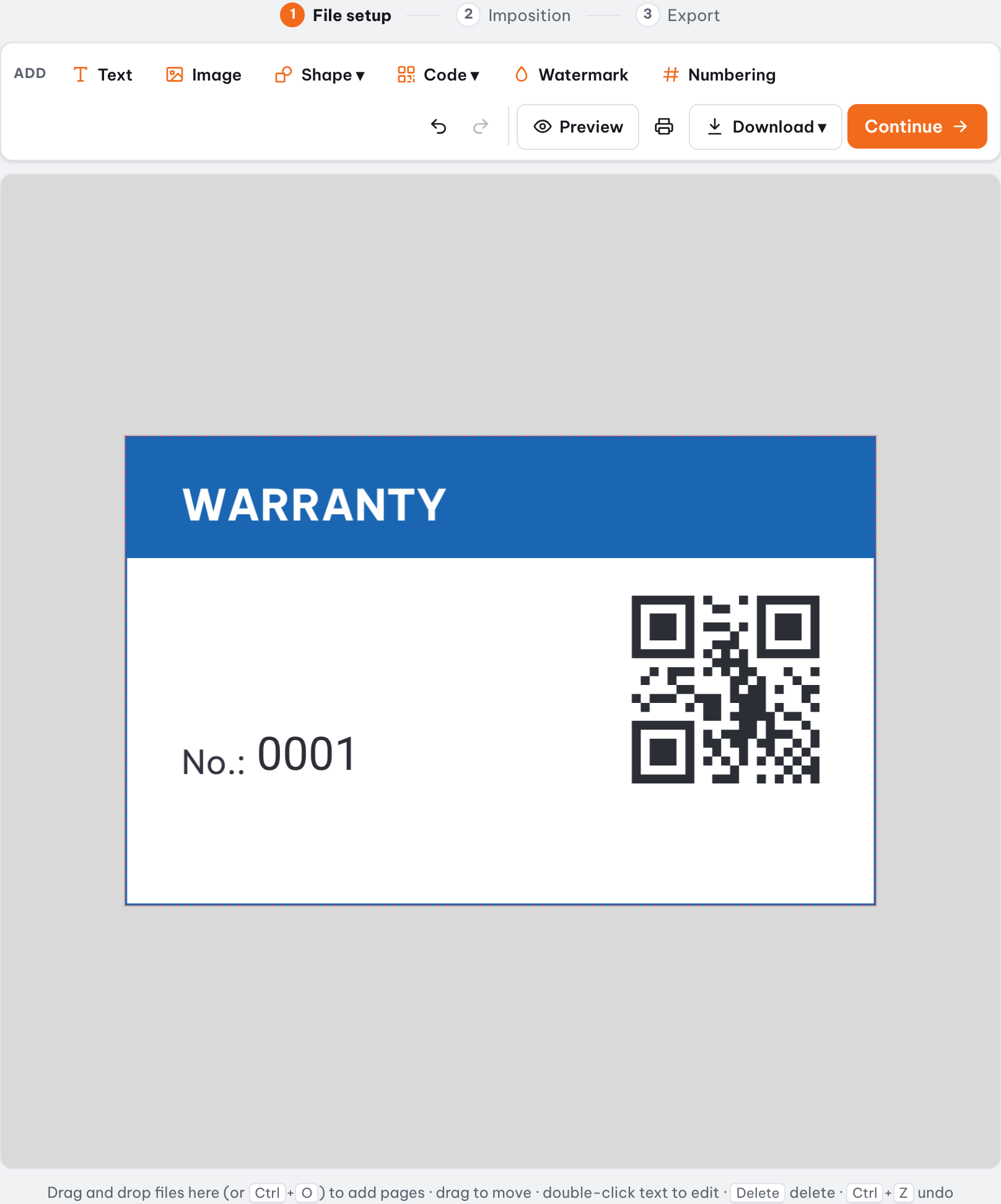
Choosing a barcode type
Use a dark code color, ideally K100 black on a light background, so scanners read it easily. Avoid placing codes over busy artwork. Trimto only draws the code from the digits in your sheet; it does not issue GS1 numbers, so get your company prefix from GS1 if you sell in shops.
| Code type | Use it for | Content notes |
|---|---|---|
| Code 128 | Internal codes, lot numbers, serial numbers, warehouse codes | Accepts letters and digits |
| UPC-A | Retail products in the US and Canada | 11 digits (check digit added automatically) or 12 digits with a correct check digit |
| UPC-E | Small retail packs | 7 or 8 digits, starting with 0 or 1 |
| EAN-13 | Retail products with a GS1 number | Exactly 12 or 13 digits; letters are flagged as errors |
| EAN-8 | Very small retail packs | 7 or 8 digits |
| Code 39 | Asset tags, ID badges | Capital letters, digits, space and - . $ / + %; lowercase is converted |
| ITF-14 | Shipping cartons and cases | 13 or 14 digits |
| GS1-128 | Logistics labels | Application identifiers in brackets, e.g. (01)09521234543213(10)ABC123 |
| PDF417 | Tickets, ID cards, documents | Any text; holds more data than a QR of the same width |
| QR | Website links, product info, warranty pages | Combine a fixed link with {{Code}} |
| Data Matrix | Very small codes on component labels | Use when the label is too small for QR |
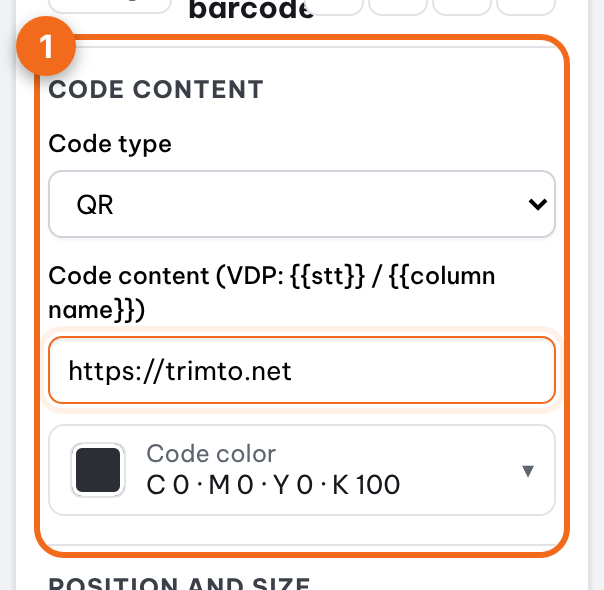
Combine several columns in one QR code
Code content can contain several {{column name}} fields at once. For example https://example.com/p/{{Code}}?lot={{Lot}} gives each label its own link by product code and lot number. A label can also show {{Name}} as text and the barcode of {{Code}} together.
Check before you print
Trimto reports invalid content, such as an EAN-13 with letters or the wrong number of digits, in the Check tab. Preview each label to make sure the code sits in the right place and is large enough. For small labels, print one test sheet and scan it with a phone or real scanner before printing the whole run.
Nest on a sheet, then cut
Click Continue and the whole run moves to the layout step with "Print by quantity", which works out the fewest sheets, always enough or more, never short. Rectangular labels can use straight cutting; round, rounded or contour-cut labels can use die cutting before you export the PDF.
Step-by-step guides
Further reading
FAQ
- Is making barcode labels from Excel free on Trimto?
- Yes. Excel data merge, barcodes, QR codes and PDF export are free with no watermark. Your sheet and design files are processed in the browser and never uploaded to a server.
- Which spreadsheet files can I use?
- You can upload .xlsx, .csv and .tsv files; the first row holds the column names and each following row is one label. You can also select a range in Excel, press Ctrl + C and paste it into the data box.
- Which barcode types are supported?
- UPC-A, UPC-E, EAN-13, EAN-8, Code 128, Code 39, ITF-14, GS1-128, PDF417, QR codes and Data Matrix. Codes are drawn as vector.
- Can I make UPC-A barcodes from an Excel sheet?
- Yes. Put 11 digits in a column (Trimto adds the check digit) or 12 digits with the correct check digit, then insert that column into a UPC-A code. A wrong row is reported by its record number before the PDF is exported. Trimto draws the code only; it does not issue GS1 numbers.
- Can one code combine several columns?
- Yes. Code content can hold several {{column name}} fields, for example https://example.com/p/{{Code}}?lot={{Lot}}.
- Are invalid codes caught before printing?
- Yes. Content that breaks the standard, such as an EAN-13 with letters or the wrong digit count, is flagged in the Check tab and in the preview.