
Variable data printing: sequential numbering & Excel merge
Every label with a unique serial number, QR code, or name: Trimto generates a full batch of items from sequential counters or Excel/CSV spreadsheets, then imposes them onto print sheets for guillotine cutting or die-cutting.
Open variable data printing tool →Free · runs in browser · files never leave your device
Features
- Sequential counter {{stt}} (the running-number placeholder, replaced by 0001, 0002… on each label): custom start number, step increment, and zero-padded digit length (e.g., 0001, 0002)
- Data merge from Excel, CSV: insert {{column_name}} into text fields, QR codes, or barcodes
- Dynamic QR codes, Code 128, EAN-13, UPC-A, ITF-14, GS1-128, PDF417 and Data Matrix codes updated for each individual item
- Real-time record preview across individual merged items before imposing
- Impose the generated batch onto press sheets for straight step & repeat cutting or die-cut nesting
How it works
- Open your base design file and click "Sequential numbering" on the top toolbar.
- Configure starting number, step increment, and digits, or upload an Excel / CSV spreadsheet.
- Insert {{stt}} or {{column_name}} placeholders into text, QR codes, or barcodes, then preview individual records.
- Click Continue to impose the entire dataset onto sheets and export print PDF.
What is variable data printing (VDP)?
Variable data printing means printing one design where every copy carries its own content: sequence numbers 0001, 0002…, customer names, product codes, QR codes that each point to a different address. Instead of building hundreds of pages by hand, you need one design plus sequential numbers or an Excel sheet.
Common uses: tickets, raffle coupons, warranty and anti-counterfeit labels, event name badges, product labels with batch numbers, personalized invitations.
Sequential numbering: start, step and digits
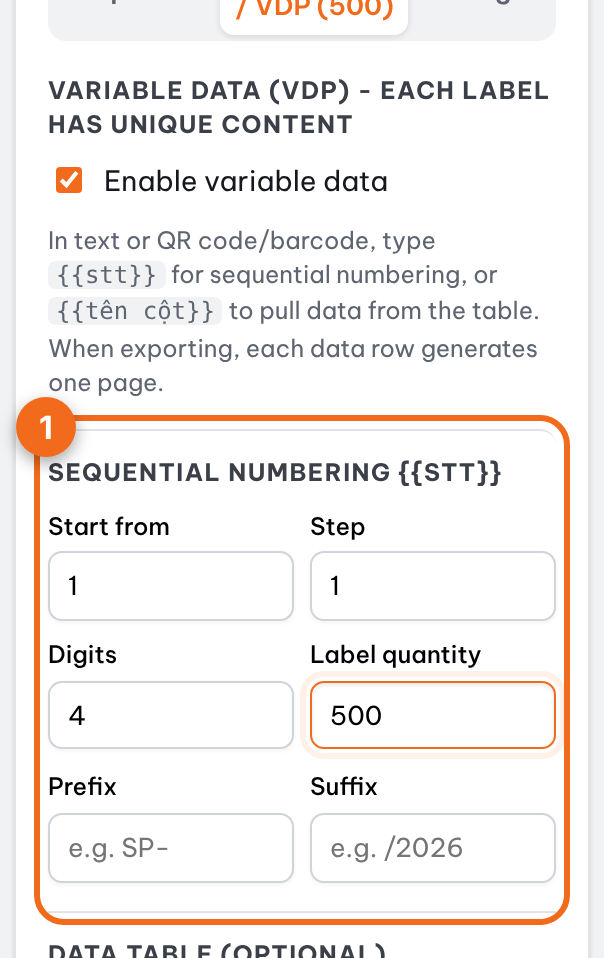
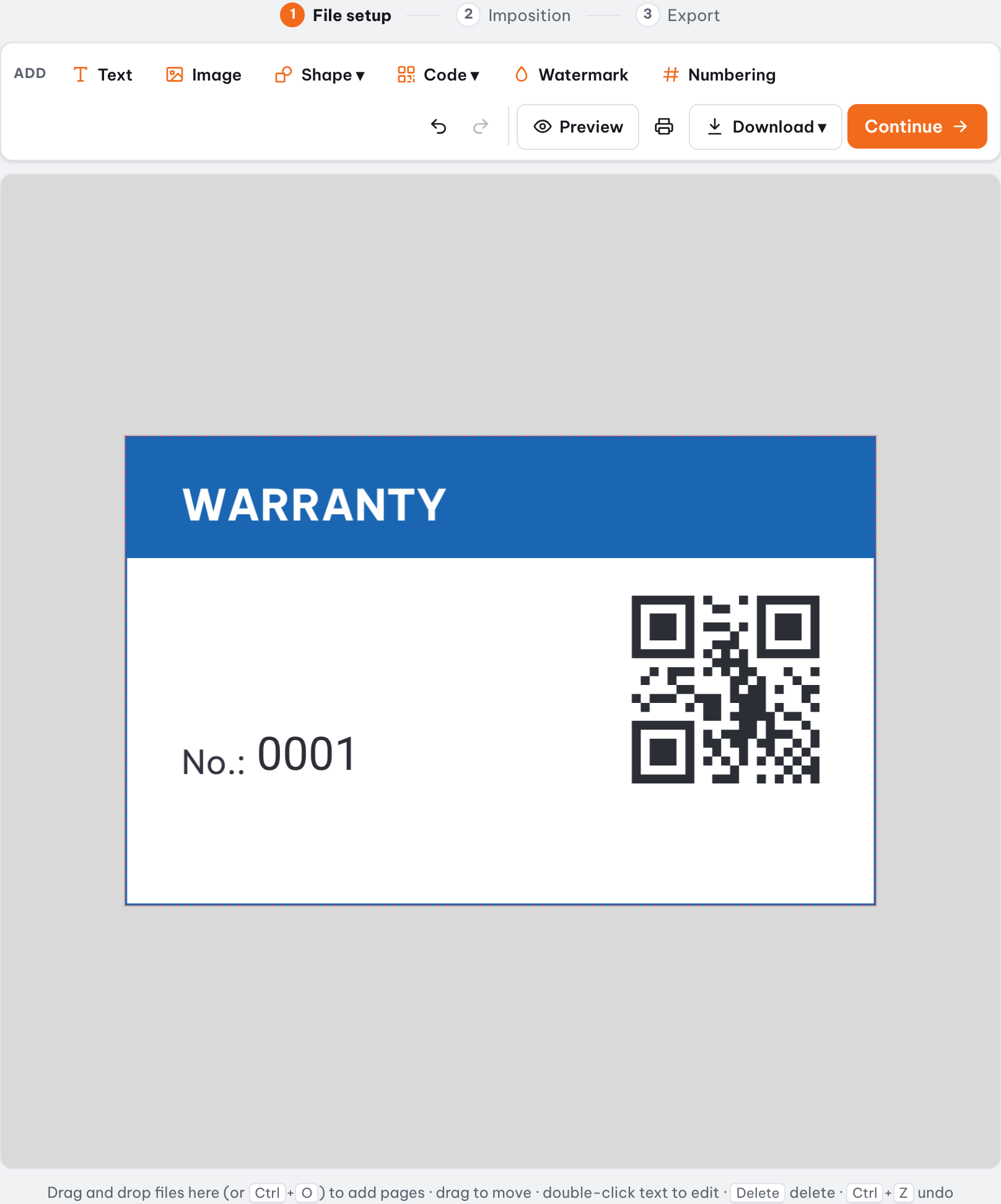
Click "Numbering" on the toolbar and a {{stt}} text box is placed on the page; move it into place and style it like normal text. In the "Numbering / VDP" tab, set:
| Field | Meaning | Example |
|---|---|---|
| Start from | Number of the first label | 1 |
| Step | How much each label adds | 1 |
| Digits | Leading zeros to fill the width | 4 → 0001 |
| Label quantity | How many labels (without an Excel sheet) | 500 |
| Prefix / Suffix | Text before / after the number | SP-0001/2026 |
Data merge from Excel or CSV
- Prepare an .xlsx, .csv or .tsv sheet: the first row holds column names, each following row is one label.
- Pick the file, or select a range in Excel, press Ctrl + C and paste it into the data box.
- Select a text box, QR code or barcode and click a column name to insert {{column}}; {{stt}} still works alongside.
- The label count equals the number of data rows; a misspelled column name is flagged in the preview.
QR codes and barcodes that change per label
A QR code or barcode can contain {{stt}} or {{column}}, for example https://example.com/p/{{Code}}, so every label gets a different code.
| Code type | Used for |
|---|---|
| QR | Website links, product info, warranty |
| Code 128 | Internal codes, batch and serial numbers |
| EAN-13 | Retail product codes (12-13 digits) |
| UPC-A, UPC-E, EAN-8 | Retail codes for the US, Canada and small packs |
| Code 39, ITF-14, GS1-128 | Asset tags, shipping cartons, logistics labels |
| PDF417 | Tickets and ID cards holding a lot of text |
| Data Matrix | Very small codes on component labels |
Several designs, each with its own numbering
In a multi-page file, each page is a design with its own number series: the "Numbering / VDP" tab edits the page you have open and leaves the others alone. The Excel data table is shared by the whole file.
Imposing the series, per sheet or cut and stack
Click Continue and the whole series goes to the imposition step, switched to "Print by quantity" to find the fewest sheets. Choose step and repeat or die cut, then export the PDF as with normal labels.
For tickets and coupons cut as a pile, choose cut and stack numbering: after cutting, each stack runs in sequence with no hand sorting.
Step-by-step guides
Further reading
FAQ
- Can sequential numbering include leading zeros?
- Yes. Set the "Digits" count; for example, setting 4 digits formats numbers as 0001, 0002, 0003…
- Which spreadsheet formats are supported?
- You can upload .xlsx, .csv, and .tsv files. The first row must contain column headers, and each subsequent row generates one item.
- Is variable data printing on Trimto free?
- Yes. Numbering, Excel data merge, QR codes, barcodes and PDF export are free with no watermark. Your data and design files are processed in the browser and never uploaded to a server.
- Can I paste data straight from Excel?
- Yes. Select the range in Excel including the header row, press Ctrl + C, paste it into the data box and click "Use pasted table".
- Can each page of the file have its own numbering?
- Yes. Each page is a design with its own start, step and count; the numbering you edit is always that of the page you have open.