
How to add text, images, shapes and a watermark
User guide contents ↓The Add toolbar above the sheet lets you add extra content to customer files: update prices, add expiration dates, stamp sample watermarks, and more.

| Button | What it adds |
|---|---|
| Text | A text box in the center of the sheet. Double-click to edit content. |
| Image | PNG or JPG image from your computer. |
| Shape ▾ | Rectangle, circle / ellipse, straight line. |
| Watermark | A semi-transparent "SAMPLE" watermark placed diagonally across the sheet. Edit the text just like a regular text box. |
Edit objects
Click an object on the sheet to view its properties in the right sidebar:
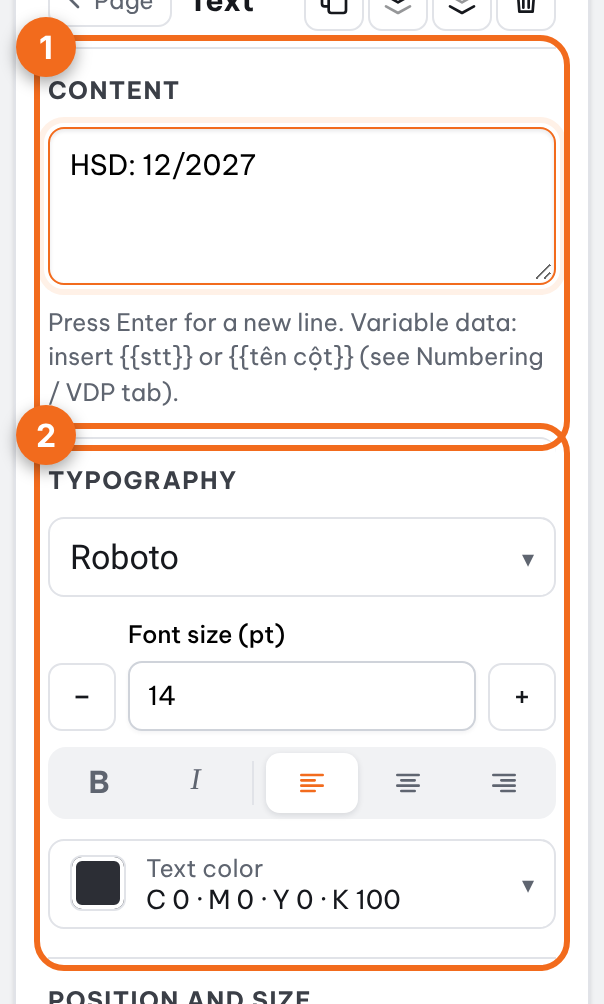
- Text: content (Enter to start a new line), font, bold/italic, size, color.
- Image: print resolution. If an image is under 300 DPI, click Upscale AI ×2 or ×4 to sharpen it.
- Shape: fill color, border, border width.
- Position and size (mm): enter exact values for Left (X), Top (Y), width, height, and rotation angle.
Buttons at the top of the right sidebar: duplicate, bring forward, send backward, delete.
Fonts and colors
- 18 fonts with full Vietnamese accent support. Upload custom fonts (.ttf, .otf) directly from the font list. Fonts are fully embedded into the PDF.
- Click the color swatch to choose common print colors, or enter CMYK, RGB, or HEX values. CMYK is recommended for print-ready files.
Tip: Drag to move, drag corners to resize, use arrow keys to nudge by 0.5 mm (hold Shift: 5 mm), Ctrl + D to duplicate, and Delete to remove.
Common jobs with the Add bar
- Fix a price or expiry date: add a Text box in the same spot, and put a white Shape under it if you need to hide the old text.
- Stamp a sample: click Watermark, edit the text and bring it to the front so it covers the whole label.
- Logos, anti-counterfeit marks: add a transparent-background PNG as an Image; drag a corner to resize and keep the proportions.
- Fold or cut guides: add Shape ▾ → line and type exact positions in mm.
Text tips
- Vietnamese accents: use one of the 18 built-in fonts; a font you upload must contain the accents or they will drop out.
- Small label text should be 6 pt or larger; under 5 pt thin strokes tend to break up in print.
- Set informational black text to K100 (CMYK 0/0/0/100), not RGB black: converted to CMYK it becomes a four-color black (C, M, Y and K stacked), and small text blurs or shows colored fringes when the four plates are slightly out of register.
- Need different text on every label? Use Excel data instead of building each box, see Variable data from Excel.
Image tips
- Images under 300 DPI at print size can look soft; see Preflight check or click Upscale AI ×2 or ×4.
- Full-bleed images need extra artwork beyond the cut line, see Add bleed.
Common mistakes
- Missing accents or square boxes: the font doesn't support Vietnamese; switch fonts.
- Object on the wrong layer: use the bring-to-front / send-to-back buttons at the top of the right column.
- Object a few mm off the original: type values into Left (X) and Top (Y) instead of dragging.
- Image looks grainy in print: low DPI, see the image tips above.
FAQ
Can I add text to every page at once? Add it to one page and press Ctrl + D to duplicate; with several label designs, do it page by page.
Does the watermark end up in the print PDF? Yes, anything visible on the page is exported; remove the watermark before sending the real print job.
Further reading
- Wikipedia, Pixels per inch and Rich black: image resolution and black text in print.