
How to preflight a PDF online and fix each warning
User guide contents ↓Customer files usually go wrong in three places: fonts, blurry images and color. A problem found after printing costs paper, so Trimto checks as soon as you open a file. Open the Preflight tab in the right panel: Trimto automatically preflights the current page and reruns every time the page changes.
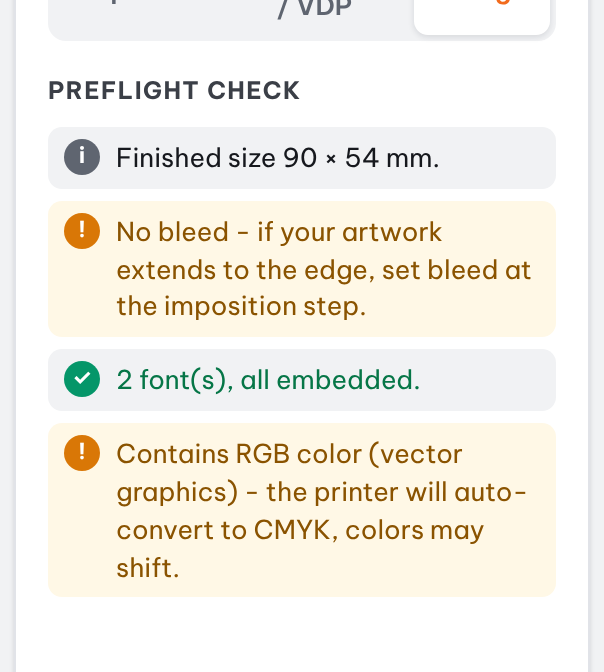
Each item displays a symbol: ✓ passed, ! review recommended, ✕ error to fix, i info only. The Finished size row makes it easy to double-check dimensions against your order. Preflight every page before clicking Continue.
Preflight checks and fixes
| Warning | What to do |
|---|---|
| Missing bleed | For full-bleed backgrounds: set bleed at the imposition step. You can ignore this for die-cut nesting. |
| Unembedded fonts | Ask the client for a file with embedded fonts or converted text (outlines). |
| RGB colors detected | The printer will convert them to CMYK automatically, which may cause color shifts. Request a CMYK file for critical colors (logos). |
| Image under 300 DPI | 150–300 DPI may look slightly soft; under 150 DPI will appear pixelated. Use Upscale AI or print at a smaller size. |
| Spot color | Informational only: the file contains spot colors (Pantone…); notify your press operator in advance. |
| Invalid code | QR code or barcode content is invalid. Edit it under Code content. |
Unembedded fonts
Symptom: The Preflight tab shows "Unembedded font: …".
Why it happens: The PDF only references the font name without embedding the actual font file. If the print shop's computer lacks that font, it gets substituted with another font, causing wrong glyphs or misaligned lines.
How to fix:
- Ask the customer to re-export the PDF with fonts embedded (Illustrator, CorelDRAW, and InDesign all include this option).
- Alternatively, request a file with all text converted to curves (Create Outlines / Convert to Curves).
- Text added directly in Trimto is always fully embedded, so no extra steps are needed.
When uploading custom fonts from your computer (.ttf, .otf), Trimto also warns you if the font lacks accented Vietnamese glyphs. Choose a different font from the 18 built-in options (all fully support Vietnamese accents), or use a font release with Vietnamese support.
Low-resolution images
Symptom: The Preflight tab warns "Image at only … DPI"; during imposition, a color-coded DPI value appears next to each design. DPI is the number of pixels per inch once printed: the more an image is enlarged, the lower its DPI.
| Print DPI | Result |
|---|---|
| 300+ | Print-ready |
| 150 - 300 | May look slightly soft |
| Under 150 | Pixelated |
How to fix:
- Click Upscale AI ×2 or ×4 (on the selected image, or next to the design in the imposition step). The print dimensions stay unchanged while DPI increases accordingly. Extremely blurry images will only improve partially.
- Print smaller: reducing the output size increases DPI.
- Best approach: request high-resolution original images from the customer.
RGB and spot colors
Screens use RGB, presses use CMYK. An RGB file still prints, but when it is converted to CMYK, vivid colors (neon green, bright orange) often look duller. For logos and brand colors, ask for a CMYK file up front so the printed color matches what the customer approved. Spot colors (Pantone, foil) are reported for information only: Trimto does not convert them, but your press operator needs to know in advance to prepare ink or a separate plate.
When to run the check
- Right after opening a customer file, before laying it out on a sheet.
- After adding your own text, images or QR codes: new items are checked too.
- Before exporting a large quantity, to avoid reprinting whole sheets.
To avoid most warnings from the start, see Print-ready PDF checklist.
Further reading
- Adobe Acrobat Help, Preflight profiles (Acrobat Pro): a full prepress preflight in Acrobat Pro, for comparison.
- Wikipedia, Preflight (printing), Font embedding and CMYK color model.
- Trimto Learn: Print-ready PDF checklist.