
Get started with Trimto: the two workspaces
User guide contents ↓Trimto is a print imposition tool for print shops that runs right in your browser (Chrome, Edge, Firefox, Safari)—no installation needed. Files are processed locally on your computer and never uploaded to a server.
Two workspaces
| Workspace | Best for | Steps |
|---|---|---|
| Quick Imposition | Labels, stickers, vinyl/decal stickers, business cards, flyers | Set up your print file → impose onto sheets (die-cut nesting or step & repeat) |
| Book & Catalog Imposition | Books, catalogs, magazines, yearbooks, calendars, folded brochures | Arrange pages, covers, numbering → impose by binding type |
In addition to the two workspaces, the Stock images & vectors tab helps you find free photos, vectors, and icons for print; see Stock images & vectors.
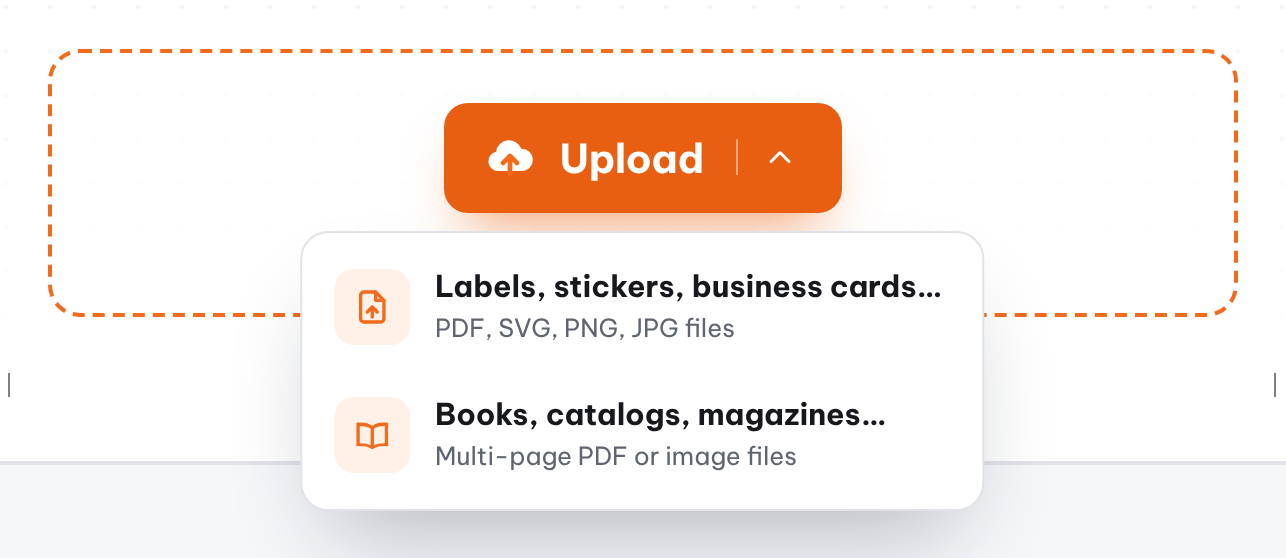
Open a workspace from the home page (click Upload and choose a file type, or drop files into the box) or from the top navigation bar.
Quick Imposition workflow
The 3-step bar above the preview (1 File setup · 2 Imposition · 3 Export) shows where you are; click a step to go back or move on.
- File setup: open file, resize, add text, QR codes, sequential numbering, and preflight.
- Click Continue.
- Imposition: choose your sheet size, run die-cut nesting or step & repeat (with bleed), then export PDF or print.
Don't have a file yet? Click Try sample file on the home page to test the entire workflow with 3 sample labels.
Free to use, sign-in required for downloads
All file setup, imposition, and preview features are ready to use immediately. Only downloading PDFs, exporting images, and printing require you to sign in (free).
Which workspace for which job
| You need | Use | Start with |
|---|---|---|
| Many labels or stickers on one sheet, cut by a blade or die cutter | Quick imposition, die-cut nesting | Die-cut nesting |
| Business cards, flyers, rectangular labels, straight cuts | Quick imposition, step & repeat | Step & repeat |
| Books, catalogs, magazines, calendars | Book & catalog imposition | Upload and arrange pages |
| Photos, vectors, icons for your design | Stock images & vectors | Stock images & vectors |
What you need to start
- A modern browser (Chrome, Edge, Firefox, Safari) on a computer; a larger screen is easier than a phone.
- A design file: a PDF (ideally vector, with bleed included), a PNG/JPG, or Trimto's sample file. See Print-ready PDF checklist.
- No file yet? Use Try sample file on the home page.
Quick answers
Are my files uploaded? No. Trimto processes files on your own computer; the server only handles accounts, download counts and feedback, never file contents.
Does it cost anything? File setup, imposition and preview are free; only downloading PDFs, exporting images and printing need a (free) sign-in.
Do I install anything? No. Open the page and work; resume unfinished work with a .trimto project file.
Wrong print size or missing labels? See PDF prints at the wrong size and the FAQ.
Shortcuts for heavy users: Keyboard shortcuts.